
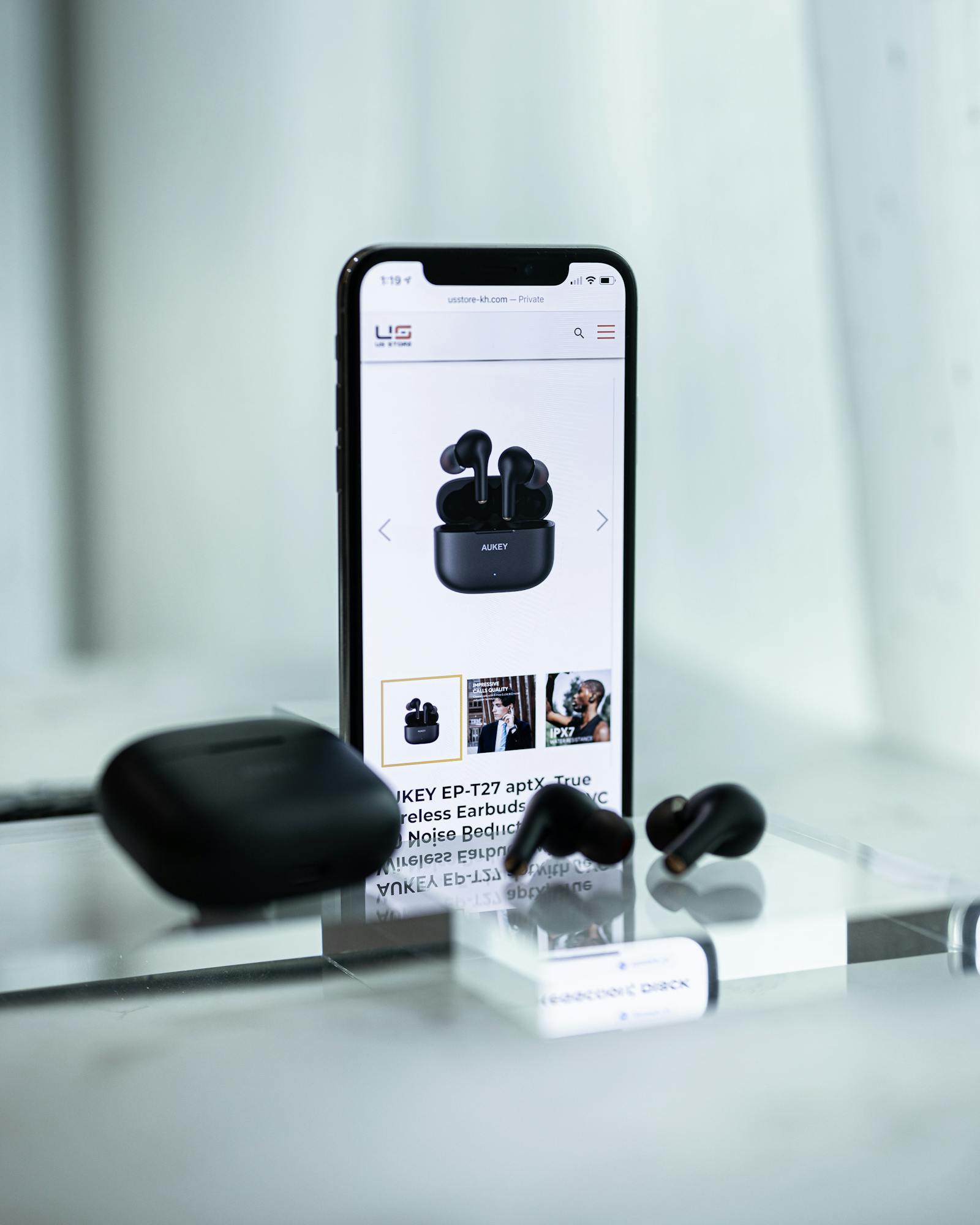
When AirPods refuse to connect, the fastest fix depends on which symptom you are actually seeing. If the setup card never appears, start with charge level, case behavior, and pairing mode. If the AirPods show up in Bluetooth but never finish connecting, stale pairing data is more likely. Apple’s pairing guide, won’t connect steps, and charging guide are most useful in that order.
The point is to avoid resetting a working pair of earbuds just because the phone and case are out of sync. A short check of charge state, Bluetooth state, and whether the case can trigger the white status light usually tells you which branch to follow.
One thing that helps here is naming the symptom honestly. “AirPods not connecting” can mean at least four different problems: the setup card never appears, the AirPods appear but stay stuck on connecting, audio never moves over to the AirPods, or the pair belongs to another Apple Account and was never fully cleared. Those are not the same fix.
Match the symptom before you reset anything
- If the case opens and nothing appears on iPhone, treat it as a charge or pairing-mode issue first.
- If AirPods appear in
Settings > Bluetoothbut tapping them does nothing, clear the old connection and try a clean pair again. - If only one AirPod seems alive, fix seating and charging before chasing Bluetooth menus.
- If the same failure follows the AirPods across multiple devices, a reset becomes more reasonable.
If the case or pairing light is the blocker
When the AirPods do not show up at all, the case is usually your first clue. Apple recommends confirming that both AirPods are in the case and actually charging before you do anything more dramatic.
Walk this order:
- Put both AirPods in the case.
- Leave the lid closed for about 15 seconds.
- Open the lid near the iPhone or iPad.
- Watch for the setup card or the white pairing light.
If the case never gives you a pairing signal, that usually means one of three things:
- one or both AirPods are not seated correctly
- the case battery is too low to start pairing cleanly
- the case is not entering pairing mode at all
That is why this branch should come before deleting Bluetooth records. A phone cannot connect to earbuds that never become ready to pair in the first place.
If the AirPods appear in Bluetooth but the connection never completes
This is the branch people often misread. Seeing the AirPods in the Bluetooth list does not mean the connection handshake finished successfully.
When the AirPods are visible but unusable, use this sequence:
- Open
Settings > Bluetooth. - Make sure Bluetooth is on.
- If the AirPods are already listed, tap them once and wait a moment.
- If the same failure repeats, remove the old connection and pair them again with the case open beside the device.
This branch fits symptoms like:
- the AirPods appear in Bluetooth but stay stuck on connecting
- the setup card flashes briefly and disappears
- the phone used to know the AirPods, but the reconnect never finishes
In that situation, the phone usually needs a cleaner pairing attempt more than the earbuds need a factory-style reset.
Apple also suggests checking Control Center or the AirPlay output list when the AirPods appear but still are not actually being used. If you can select them there and then test audio, you learn quickly whether this is a true pairing failure or just an output-selection problem.
If one AirPod or the battery state is the real problem
Apple’s charging guidance matters more here than most people expect. One low AirPod can make a connection problem look random when the real issue is that the earbuds never started from the same state.
Treat charge as the main suspect when:
- one side appears first and the other side never joins
- the AirPods work for a minute and then disappear again
- the case opens, but pairing only works after sitting on charge
Before you try another reconnect, give the case and both earbuds time to charge. Then repeat the pairing attempt from the top. This is a much better use of time than tapping Connect over and over while one bud is effectively offline.
The case light is useful here too. Apple says green means fully charged and amber means less than one full charge remains. That is not a perfect diagnosis by itself, but it gives you a quick clue about whether you should keep troubleshooting Bluetooth or go back and charge everything first.
If the AirPods are new, borrowed, or tied to another setup
This is an easy problem to miss because the AirPods can look normal while still not being ready for your phone. Apple notes two cases that matter here.
The first is software compatibility. Newer AirPods models need a recent enough version of iOS to pair correctly, so a setup that never quite finishes on an older iPhone is not always a broken pair of earbuds.
The second is ownership state. If you are trying to use AirPods that someone else previously set up, they may need to be removed from that person’s Apple Account first before the connection process behaves normally.
If the AirPods are brand new to you but not brand new overall, this branch is worth checking before you keep treating the problem like ordinary Bluetooth failure.
What not to reset yet
If the case can still show the white pairing light and one clean manual pairing attempt has not happened yet, jumping straight to a full reset is usually too early.
Hold off on bigger steps if you have not yet checked:
- whether both AirPods are actually charging in the case
- whether Bluetooth is on and the AirPods can be selected from the output list
- whether the case will enter pairing mode manually
- whether the AirPods were previously attached to someone else’s Apple Account
When a reset is actually worth it
A reset makes sense after the easier branches fail, not before. Apple points people to the reset step when the AirPods still refuse to connect after charge and clean pairing checks.
Reset the AirPods when:
- the case can enter pairing mode, but the same failure keeps returning
- the AirPods are visible and charged, yet they still will not finish pairing
- more than one phone or tablet shows the same problem
If the failure is consistent across devices, the AirPods themselves are more likely to need a reset. If the failure only happens on one phone, the phone’s saved Bluetooth state is still the better suspect.
When support is more likely than another retry
Keep testing if the AirPods can charge, trigger pairing mode, and at least appear to the device. Move toward support when the basic signals disappear entirely.
That usually means:
- the case never triggers the pairing light
- one AirPod never shows charging behavior at all
- multiple devices fail after you repeated the clean pairing sequence
At that point, another random reconnect attempt is less useful than following Apple’s support flow directly.
If the connection does work sometimes but later keeps dropping, the better next read is AirPods Keep Disconnecting? Here’s What Usually Helps because that is usually a stability problem, not the same issue as a pair that never connects at all.
Sources checked
This guide was cross-checked against Apple’s If your AirPods or AirPods Pro won’t connect, Connect your AirPods and AirPods Pro to your iPhone, and Charge your AirPods support pages.